Guide to Cloud Storage and Backup Solutions
e SSD died, my deadline laughed at me, and I spent the evening googling “data recovery cost” with a sinking feeling.
That little disaster pushed me deep into the world of cloud storage and backup solutions. Since then, I’ve tested everything from Google Drive and iCloud to Backblaze, Wasabi, OneDrive, Dropbox, Synology’s C2, and a couple of lesser‑known tools that almost bricked my NAS.
This guide is the breakdown I wish I’d had before that coffee bath.
Cloud Storage vs Cloud Backup: They’re Not the Same Thing
When I first started exploring this stuff, I thought “cloud is cloud”. Nope.
Cloud storage is like a remote flash drive you share with all your devices:- You manually put files there or sync specific folders.
- Great for collaboration, sharing, and accessing documents anywhere.
- Examples: Google Drive, Dropbox, OneDrive, iCloud Drive.
- It runs automatically in the background.
- It backs up everything (or most things) on a schedule.
- It’s designed for disaster recovery: ransomware, drive failure, theft, spilled coffee.
- Examples: Backblaze, CrashPlan, iDrive, Acronis Cyber Protect Home Office.
When I tested them side‑by‑side, the biggest difference was mindset. With storage, I had to remember to put files there. With backup, I set it once, and it quietly hoovered up my files every night. The "set‑and‑forget" part is what saves you when stuff really breaks.
The 3-2-1 Backup Rule (The One Rule I Actually Follow)
Every IT pro I know swears by the 3-2-1 backup rule:
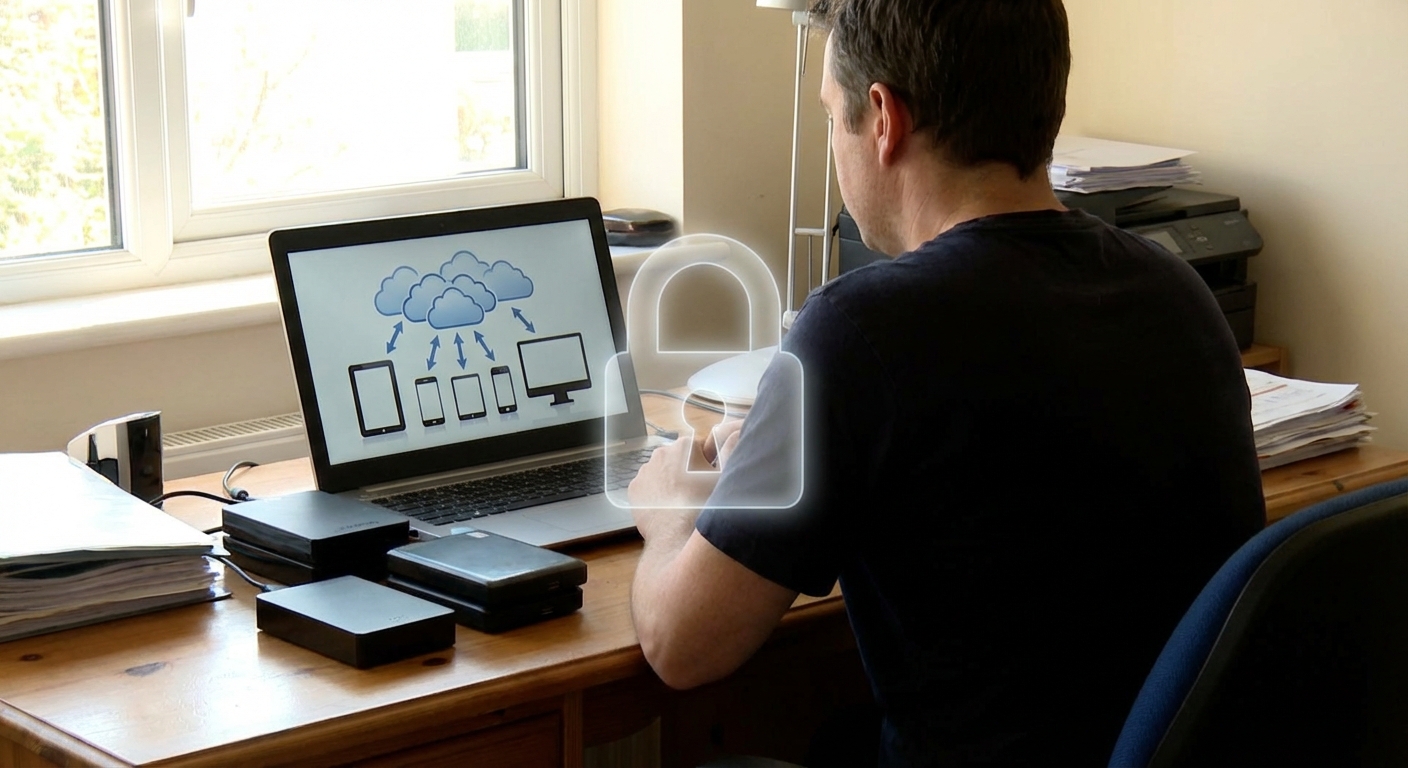
- 3 copies of your data
- 2 different types of storage (e.g., internal drive + external drive)
- 1 copy offsite (that’s where cloud backup shines)
When I finally adopted this, my setup looked like this:
- Main files on my laptop
- Local backup on an external SSD (using Time Machine on macOS and Veeam Agent on a Windows box)
- Offsite backup with Backblaze for my laptop and a Synology NAS backing up to the cloud
Is it overkill? Maybe. But I haven’t lost a single critical file since.
Popular Cloud Storage Options: What Actually Matters
I’ve used most of the big names for both work and personal stuff. Here’s how they really feel in daily use.
Google Drive
I initially jumped into Google Drive because a client shared a huge folder with me. Next thing I knew, my desktop folder was quietly syncing to the cloud.
What I like:- Deep integration with Gmail, Docs, Sheets, and Slides.
- Surprisingly useful search: I’ve found PDFs by searching for text inside scanned documents.
- Generous free tier (15 GB shared across Google services).
- Storage is shared with Gmail and Google Photos, so it fills up faster than you expect.
- Privacy folks have mixed feelings about Google analyzing data for services and features.
Dropbox
Dropbox was the first one that felt truly "magical" when I tested it years ago – file airdrops between computers just worked.
Pros:- Very reliable sync engine; in my experience, fewer weird “conflicted copy” issues than some rivals.
- Nice for collaboration: file requests, shared folders, and version history.
- Free tier is tiny these days.
- Gets pricey if you need terabytes.
Microsoft OneDrive
When I set up a new Windows 11 machine recently, OneDrive basically introduced itself by popping up everywhere.
Strengths:- Baked into Windows; great for people in the Microsoft ecosystem.
- Often bundled with Microsoft 365 – which can be phenomenal value if you use Office.
- The "Known Folder" backup (Desktop, Documents, Pictures) can be confusing if you don’t understand what’s syncing vs what’s local.
Apple iCloud Drive
On my MacBook and iPhone, iCloud is like a quiet roommate. It mostly behaves, but occasionally moves my stuff without asking.
Good stuff:- Seamless across iPhone, iPad, and Mac.
- Great for photos and iOS backups.
- The "Optimize Mac Storage" setting can evict large local files to save space, which is fun until you’re offline on a train and can’t open a Keynote deck.
Cloud Backup Solutions: The Safety Net You Actually Need
Once I got serious about not losing data, I started testing dedicated cloud backup tools. This is where things get less shiny and more practical.
Backblaze Personal Backup
Backblaze is the one I recommend most often when friends ask what to use.
Why I like it:- Flat pricing for unlimited backup per computer.
- Installs, you pick a few options, and it quietly backs up everything in the background.
- You can restore files via web, or even have them ship you a drive.
- Unlimited applies per machine, not across all devices.
- It’s backup, not sync – you don’t use it like a drive.
When I tested Backblaze on my main laptop, the initial backup took a few days (I had over 1 TB). After that, daily incremental backups were fast enough that I barely noticed.
iDrive, Acronis, and Others
I also tried iDrive on a media workstation and liked the control it gives you:
- You can back up multiple devices under one plan.
- It supports disk image backups, not just files.
Acronis Cyber Protect Home Office (formerly True Image) felt more "power‑user" to me:
- Full disk image backup, anti‑ransomware features, and cloning.
- Slightly heavier, but very capable if you’re serious about recovery options.
The trade‑off with these more advanced tools is complexity. When I set up Acronis on a friend’s PC, we spent 15 minutes just choosing backup types. With Backblaze, we were done in 3.
How to Pick the Right Cloud Solution (Without Losing Your Mind)
In my experience, asking these questions narrows choices fast:
- Do you mostly need access or protection?
- Collaboration / sharing / mobile access → prioritize cloud storage.
- Disaster recovery / ransomware protection → prioritize cloud backup.
- How much data are we talking about?
- Under 100 GB of mostly documents and photos? A single cloud storage plan might cover both sync and backup (using built‑in tools like iCloud backup or OneDrive’s PC folder backup).
- Multiple terabytes of videos, RAW photos, or VMs? You probably want:
- Local NAS or external drives plus
- Cloud backup for the critical subset, or an unlimited service.
- Are you locked into an ecosystem?
- All‑Apple household → iCloud + Backblaze works well.
- Heavy Microsoft 365 usage → OneDrive storage + something like iDrive or Backblaze.
- Mixed devices with lots of Google services → Google Drive plus a dedicated backup tool.
- What’s your recovery scenario?
I always run through the "laptop stolen in a café" test:
- Can I log in on a new machine and get my active files within hours?
- Can I restore old projects from months ago if a client reappears?
When I did this mental test years back, I realized my old setup failed hard on the second question.
Security, Privacy, and Encryption (The Stuff People Skip Over)
I admit, I used to just click "Agree" and move on. Then I read more about breaches and metadata collection and got pickier.
Key concepts I actually look for now:
- Encryption in transit and at rest: Most major providers support TLS for data in transit and AES‑256 for data at rest. You’ll see this mentioned in their security docs.
- Zero‑knowledge / end‑to‑end encryption: Some backup tools and storage services let you hold the encryption key, so even the provider can’t read your data. Backblaze offers a private encryption key option; services like Sync.com go all‑in on this model.
- Multi‑factor authentication (MFA): I never leave cloud accounts without MFA enabled. A lost password shouldn’t equal lost data.
Trade‑off: If you use a private encryption key and lose it, your data’s basically gone. When I tested this, I stored my private key inside an encrypted password manager and wrote down a recovery phrase in a physical notebook locked away.
Real‑World Setups That Work Well
Here are a few combos I’ve seen work in real life, including my own.
1. The "Normal Person" Setup
- Google Drive / iCloud / OneDrive for day‑to‑day files
- Automatic phone backups enabled (Google Photos or iCloud Photos)
- A simple cloud backup app on the main computer (Backblaze or iDrive)
I set this up for my non‑techy relative once. The only instruction was: “If your laptop dies, call me and don’t panic.”
2. The "Creative Pro" Setup
This is close to my own rig as a content creator:
- Work drive: Fast NVMe SSD
- Local backup: External SSD cloned weekly, plus Time Machine
- Archive: NAS box for older raw footage
- Offsite: Backblaze for the main machine + NAS syncing key folders to a cloud bucket
I’ve actually restored a full project from this setup after a drive hiccup. Took time, but I didn’t lose a single frame.
3. The "Small Team" Setup
For a small remote team I consulted for:
- Shared storage: Google Workspace or Microsoft 365 (Drive / OneDrive + SharePoint)
- Individual computers: Required to run cloud backup
- Critical shared folders on a central NAS that also backs up to the cloud
The big win there was version history – we rolled back a ransomware‑hit folder via cloud history in under an hour.
Pitfalls I’ve Hit (So You Don’t Have To)
A few mistakes I’ve personally made:
- Assuming sync = backup: I once deleted a folder locally, it synced the deletion, and poof – it vanished from the cloud too. Version history saved me, but not everyone has that configured well.
- Ignoring upload speed: My home connection had great download, terrible upload. The first full backup took days. Now I plan large initial uploads for overnight or weekends.
- Not testing restores: I used one backup service for six months before bothering to test a restore. The restore client kept crashing on a big folder. I switched providers the same week.
If you remember nothing else from this article: test restoring a few random files. Once. Just to be sure you’re not living with a false sense of security.
Final Thoughts: Layer, Don’t Gamble
After the coffee‑on‑laptop incident, I stopped thinking of cloud storage as a nice‑to‑have and started treating it like digital insurance.
You don’t need the fanciest enterprise setup. But you do need:
- At least one cloud storage solution for access and collaboration.
- At least one real backup (ideally automated, ideally offsite) for when something truly awful happens.
Once I put those layers in place, the anxiety around tech failures dropped a lot. Drives will still die, laptops will still get dropped, and coffee mugs will always aim for keyboards—but your data doesn’t have to go with them.
Sources
- Backblaze Hard Drive Stats for 2023 - Annual report on hard drive reliability and failure rates.
- Microsoft OneDrive Security and Compliance Overview - Official documentation on security features in Microsoft’s cloud ecosystem.
- Google Cloud Security Whitepaper - Technical overview of how Google secures data in its cloud services.
- NIST Data Backup and Recovery Guidance - U.S. government best practices for contingency planning and data protection.
- Harvard University Information Security – Backing Up Your Data - Practical guidelines for creating reliable backup strategies.