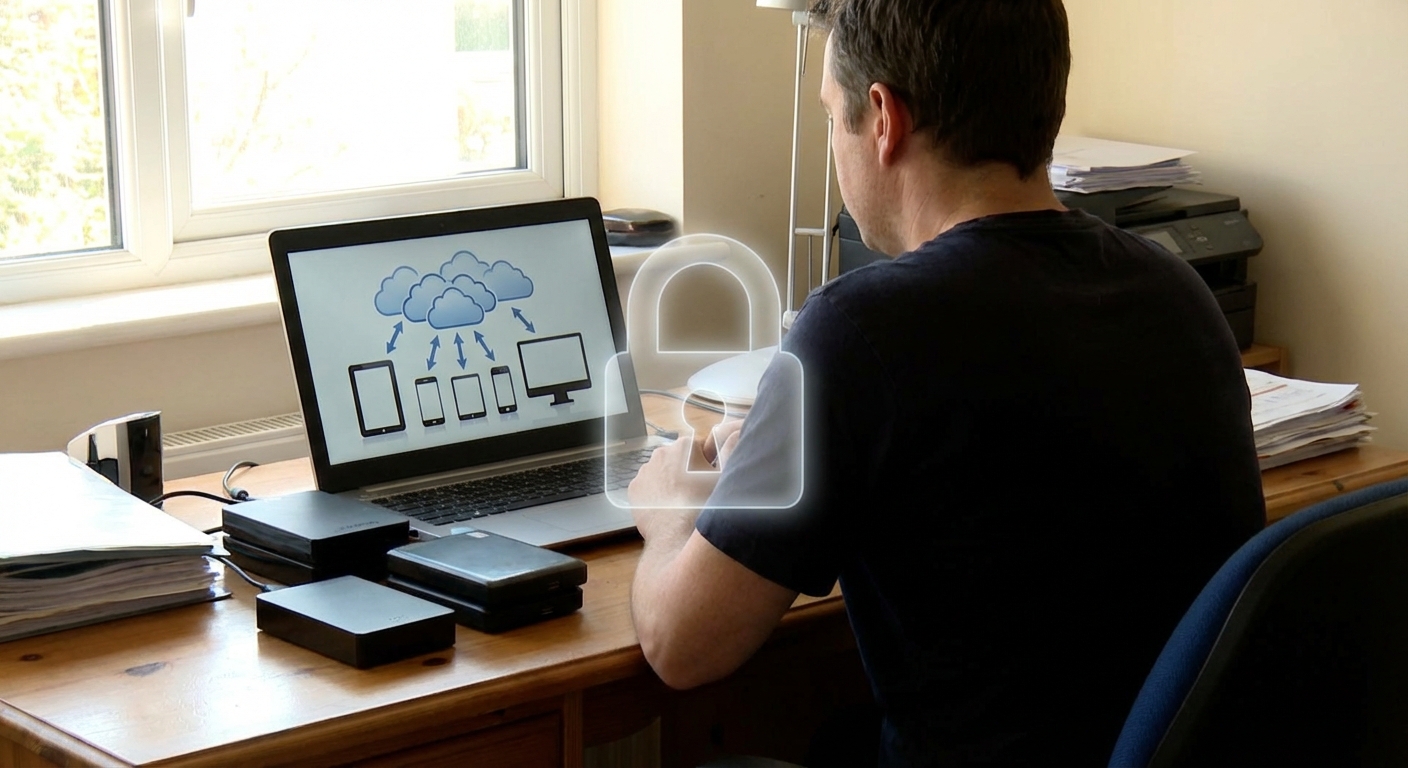
Guide to Protecting Data with Cloud Backups
Picture this: deadline the next morning, 40+ hours of work gone after a sync misfire. That awful cold-sweat feeling? Yeah, that. Luckily, I’d set up a cloud backup system a few weeks earlier “just to test it.” That stupid little experiment saved the entire project in under 15 minutes.
Since then, I’ve turned a bit obsessive about cloud backups. I’ve broken them, stress‑tested them, misconfigured them, and watched them bail people out of ransomware, dead laptops, and spilled coffee disasters.
This is the guide I wish I’d had when I started.
Why Cloud Backups Matter More Than You Think
When I talk to people about data protection, I usually hear one of these:
- “I just save to an external drive.”
- “I use Google Drive/Dropbox, so I’m backed up.”
- “My laptop’s new, it’s fine.”
I’ve tested all three assumptions. They all fail eventually.
External drives die. Backblaze (a major backup provider) publishes hard drive stats every year. In their 2023 report, annualized failure rates for some models crossed 3–4% after a few years of use. That’s not theoretical; I’ve had two drives fail in under 18 months. Sync ≠ backup. When I deleted a folder in a synced cloud drive, it happily deleted everywhere. Same for when a file got corrupted—sync just replicated the damage. New hardware doesn’t protect old mistakes. A brand-new laptop can still fall victim to ransomware, theft, or a spilled drink in the airport lounge.Cloud backups add something the others don’t: offsite, versioned, mostly-automatic protection. Done right, they quietly save you from your own mistakes and everyone else’s.

Cloud Backup vs Cloud Storage vs Sync: What I Learned the Hard Way
When I tested multiple services side by side, I realized most people are mixing up three different things:
- Cloud storage – Think Google Drive, OneDrive, Dropbox. You store files there and access them from anywhere.
- Cloud sync – Desktop clients that keep a local folder mirrored with the cloud. Great for collaboration, terrible as your only backup.
- Cloud backup – Dedicated software that silently copies all or selected data from your computer to the cloud, keeps versions, and lets you restore entire systems.
After an ugly sync incident where everyone on a team lost a shared folder because someone accidentally “cleaned up,” I started following this rule:
> If it automatically mirrors changes without versioning or restore points, it’s not a backup.
Real backups:
- Keep historical versions of files
- Let you restore from last week, last month, or last year
- Don’t overwrite everything the second something goes wrong
The 3-2-1 Rule: The Simple Framework That Actually Works
The best practical rule I’ve found is the classic 3-2-1 backup strategy:
- 3 copies of your data
- 2 different types of media (e.g., local drive + cloud)
- 1 offsite copy (this is where cloud backups shine)
Here’s how I apply it personally:
- Primary copy: my laptop + desktop
- Secondary copy: local NAS (network drive) that runs nightly backups
- Offsite copy: encrypted cloud backup with version history
That setup has saved me from:
- A corrupted SSD (restored from NAS)
- A stolen laptop (restored from cloud)
- Me deleting the wrong project folder and noticing 3 weeks later (restored older version from cloud)
Is it overkill? Maybe. But I’ve watched a small business almost die because their only backup was a single USB drive that lived in the same drawer as the PC… that got robbed.
How Cloud Backups Actually Work (Without the Buzzwords)
When I dug into how cloud backups really function, a few technical bits changed how I choose providers:
- Incremental backups
After the first full backup, most tools only upload what changed. That means:
- Faster daily backups
- Lower bandwidth usage
- Less “my internet is crawling” drama
- Versioning & retention policies
In my experience, the real value shows up when you can say:
> “Give me this folder as it looked on September 3rd at 10:15 am.”
Look for settings like:
- Number of versions retained
- How long deleted files are kept (30 days? 1 year?)
- Block-level backups
Some advanced tools back up only the changed parts of big files (like VMs or databases), not the entire file. This matters if you have:
- Large design files
- Video projects
- VM images or disk images
- Restore options
When I tested multiple services, the main difference wasn’t uploading—it was restoring. I always check:
- Can I restore a single file easily from the web?
- Can I bare-metal restore a whole machine image if the disk dies?
- Can I download data without weird throttling or fees?
Security: How Safe Is Your Data in the Cloud Really?
The security question comes up every single time I recommend cloud backups.
Here’s where I land after digging through docs, audits, and some paranoid experimentation:
Things I strongly look for
- End-to-end encryption with a private key option
I prefer setups where:
- Data is encrypted before it leaves my device
- The provider can’t read it without my key
- Zero-knowledge or “no access” architecture
Some backup tools (like certain modes of SpiderOak or Sync.com) are designed so the provider literally can’t see your data contents, even if they wanted to.
- Audited data centers
Many reputable providers use infrastructure with standards like ISO 27001, SOC 2, or FedRAMP for government-level compliance.
According to an IBM Security report, the average cost of a data breach in 2023 hit $4.45 million globally. Most small businesses don’t survive a major breach or ransomware event. That pushed me to stop treating encryption as “optional nerd stuff.”
The honest trade-off: privacy vs convenience
In my experience, there’s a clear trade-off:
- Maximum privacy (your own encryption key) = if you lose the key, your data’s gone. No password reset magic.
- More convenience (provider-managed keys) = easier account recovery, but you’re trusting them more.
I personally use private keys for my most sensitive data and provider-managed for lower-risk stuff. It’s not perfect, but it balances sanity and security.
Choosing a Cloud Backup Service: What Actually Matters
When I tested several services for both home and small business use, these factors mattered way more than their marketing pages:
- Restore speed and reliability
Upload can be slow; that’s normal. Restore is what you’ll care about during a crisis.
- I run a “fire drill” every few months: randomly pick a folder and restore it from scratch.
- Version history and retention
I look for at least 30–90 days of version history for most users; longer for critical projects.
- Pricing structure
Watch out for:
- Per-device fees that explode if you have many machines
- “Restore fees” or bandwidth charges (some cheaper object storage setups do this)
- Platform support
I made the mistake of picking a service that didn’t properly support Linux on a secondary machine. Never again. Check for:
- Windows / macOS / Linux
- Mobile backup (photos, videos, etc.) if you want that too
- Company stability
This one’s not fun to think about, but I check:
- How long they’ve been around
- Any history of shutdowns, breaches, or sudden pricing explosions
Real-World Setup: A Practical Cloud Backup Workflow
Here’s roughly how I set up backups for friends, family, and smaller teams.
Step 1: Decide what’s truly critical
When I did this for myself, I started a simple list:
- Project files
- Photos and videos
- Password manager vault backups
- Financial/spreadsheet data
Everything else is “nice to have” but not essential.
Step 2: Local backup first
I use built-in tools like:
- Windows: File History or third-party tools
- macOS: Time Machine
This gives fast restores for dumb mistakes like “I overwrote that file 10 minutes ago.”
Step 3: Add cloud backup on top
I configure a cloud backup client to:
- Exclude huge non-essential folders (temp files, cache, VM test environments)
- Run daily or hourly incremental backups
- Use encryption with a strong passphrase
When I tested schedules, daily at minimum was the sweet spot. Hourly for very active projects.
Step 4: Test restore like you expect it to fail
The first time I tested a full restore, I realized I’d accidentally excluded my entire “Documents” folder (yes, really). Now I:
- Restore random files monthly
- Do a mini “disaster test” once or twice a year (pretend a machine died and see how fast I can get back to normal)
The Dark Side: Downsides of Cloud Backups You Should Know
Cloud backups aren’t magic. I’ve hit several pain points over the years:
- Initial backup can take days if you’ve got terabytes and average home internet. Some providers offer seed drives (ship a physical drive) for this.
- Ongoing cost – Subscriptions add up. On the flip side, so does recreating lost work.
- Vendor lock-in – Moving several TB of data from one service to another is not fun, especially if they throttle downloads.
- Data residency & compliance – For businesses, where your data is stored (EU, US, etc.) can become a legal issue.
I haven’t found a perfect provider. What I aim for instead is a setup where any single failure is annoying, not catastrophic.
Final Thought: Make Future-You Proud
The weird thing about backups is that they feel like a waste of time—right up until the day they don’t.
When I recovered that “lost” client project from my cloud backup, it didn’t feel like a tech win. It felt like dodging a financial and reputational bullet.
If you do just three things after reading this:
- Pick one reputable cloud backup service.
- Turn on encryption.
- Schedule a recurring calendar reminder to test a restore.
Future-you, staring at a dead laptop or a bad ransomware note, is going to be very glad you did.
Sources
- Backblaze Hard Drive Stats for 2023 - Real-world data on hard drive failure rates
- IBM Cost of a Data Breach Report 2023 - Research on the financial impact of data breaches
- NIST SP 800-34 Rev. 1 – Contingency Planning Guide for Federal Information Systems - US government guidance on backup and recovery planning
- Microsoft: What is Backup and Disaster Recovery? - Overview of backup concepts from Microsoft
- US-CERT: Data Backup Options - Government guidance on different backup approaches