I Replaced My Laptop With a Single USB‑C Hub For a Week: Here’s What Broke (And What Worked)
my entire setup — work, gaming, travel, everything — for a full week.
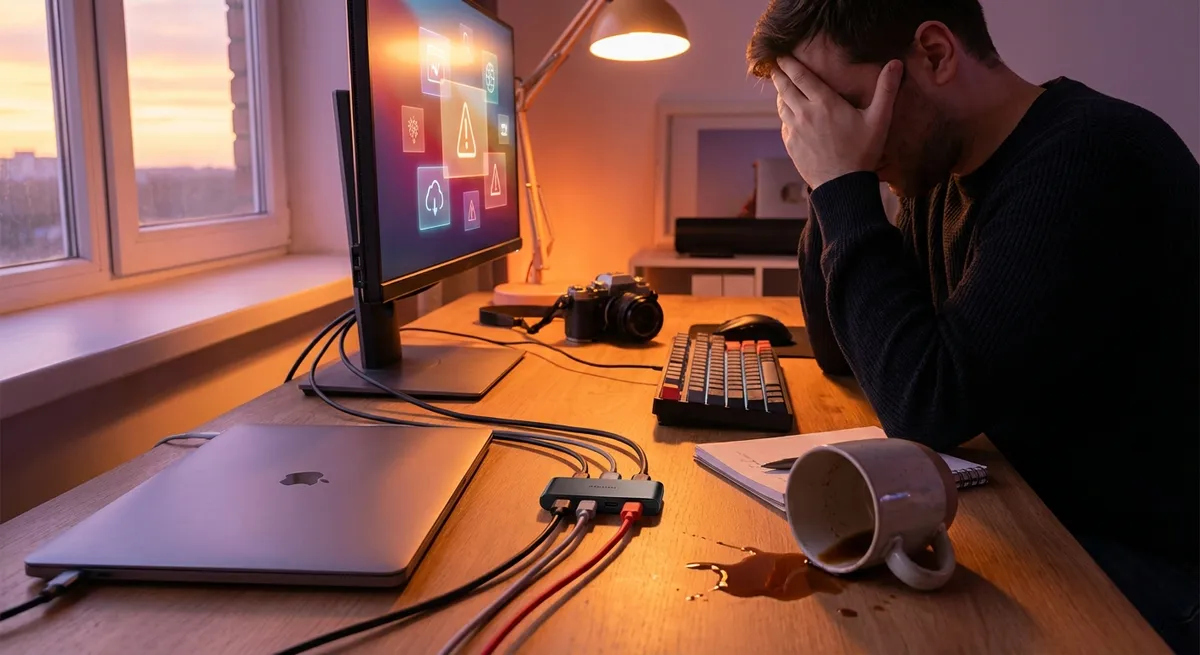
No docking station, no extra adapters, no “just in case” cables. One laptop. One hub. Way too much coffee.
By day three, I’d learned exactly how far a single USB‑C hub can go before your life (and your Wi‑Fi) catches fire. Here’s what actually happened — and how to build a setup that doesn’t suck.
Why I Gambled My Whole Setup on a Tiny Metal Brick
I’ve always had a mess of adapters: HDMI here, USB‑A there, some cursed Mini‑DisplayPort relic haunting the drawer. Cable chaos. When my backpack started sounding like a bag of Lego every time I moved, I decided to try something drastic: one hub to rule them all.
The hub I used (not sponsored, just what I bought) was a mid‑range 9‑in‑1 USB‑C hub with:
- 2× USB‑A 3.0 ports
- 1× USB‑C data port
- 1× USB‑C Power Delivery (PD) up to 100W
- HDMI up to 4K@60Hz
- SD + microSD card slots
- 3.5mm audio jack
- Gigabit Ethernet
My laptop: a 14" machine with Thunderbolt 4 (which is basically “USB‑C on steroids” — same shape, more lanes and bandwidth). I wanted to see:
- Can I actually work, game, and travel with only this hub as my expansion brain?
- Where does USB‑C genuinely shine — and where is the hype lying to you?
- Is it finally realistic to build a dock-like setup with just a portable hub?
When I tested this, I promised myself I wouldn’t cheat with extra adapters. Spoiler: I almost cracked on day five.
Day 1–2: Turning a Laptop + Hub Into a Desktop (Kinda)
The first boss fight: my home “desktop” setup. I’m running:
- A 27" 1440p monitor
- Mechanical keyboard
- USB gaming mouse
- External SSD with project files
- Wired headphones
- Ethernet to the router
I plugged everything into the hub, then the hub into a single USB‑C port on my laptop. One cable. Done. Or so I thought.
What worked surprisingly well
- Power + data over one cable felt ridiculously good
I routed my 100W USB‑C charger into the hub’s PD port, then connected the hub to the laptop. The laptop reported 90W charging — enough for full performance.
The USB‑C spec (specifically Power Delivery) currently supports up to 240W in the newer Extended Power Range (EPR) spec. Most laptops today still cap at 65–100W, but the fact that one cable did charging + display + peripherals felt like cheating.
- Monitor performance was rock solid
The HDMI port spec’d 4K60, but I used it at 1440p 144Hz. When I checked the display settings, I got:
- 2560×1440 @ 120Hz over the hub (144Hz straight to laptop)
So yeah, I lost some refresh rate through the hub — which makes sense because many hubs share bandwidth internally. But 120Hz is still butter smooth. No flickering, no random disconnects.
- Ethernet absolutely slapped
I ran a quick speed test:
- Wi‑Fi: ~310 Mbps down
- Ethernet via hub: ~920 Mbps down
Ping also dropped from ~18 ms to ~4 ms. For video calls, this alone made the hub worth it. Uploads to cloud storage felt instant compared to Wi‑Fi.
What didn’t work (and almost nuked my sanity)
- Thermal issues are real
After ~2–3 hours, the hub was warm. After a full workday with monitor + Ethernet + SSD + charging? It was straight‑up toasty.
Consumer hubs often get little metal shells that act like heatsinks, but inside they’re still cramming power delivery, USB controllers, and video over a tiny board. Mine never reached “burn your fingers” level, but it got hot enough that I stopped stacking things on top of it.
- The SSD kept disconnecting during heavy load
I plugged my external NVMe SSD (in a USB‑C enclosure) into the hub and ran a big file copy plus a backup. Twice in one day, the SSD momentarily vanished then remounted.
In my experience, this usually means:
- The hub’s internal controller is overloaded
- Or it’s not getting quite enough power for peak load
- Or the thermal throttling is kicking in
Once I moved the SSD to a direct laptop port, the problem disappeared. Lesson: don’t trust a busy hub with mission‑critical external drives if you’re also pushing video and charging.
- Cable positioning matters way more than you think
At one point the HDMI cable tugged slightly on the hub, and my monitor went black for a second. I tweaked the cable routing and it never happened again — but wow, it reminded me the entire setup hinged on a single connector.
Nothing technically “wrong” there. Just physics and leverage on a small port.
Day 3–4: Can a Single Hub Keep Up With Gaming and Creative Work?
Once I got past the “ooh one cable” honeymoon, I wanted to see if I could push the hub into the two big stress tests: games and media work.
Gaming through a hub: better than I expected, worse than I wanted
I don’t have an external GPU dock in this setup — just the laptop’s internal GPU pushing a monitor via the hub’s HDMI.
I tried:
- A lighter esports title (Valorant)
- A mid‑range single‑player game
- A AAA title with ray tracing bumped a bit
Observations:
- Input lag from keyboard/mouse via hub? I didn’t feel any. USB 3.0 bandwidth and latency are more than enough for normal HID devices.
- Frame rates? Pretty much identical to HDMI directly into the laptop, but when the laptop was also charging through the same hub, temps climbed a little faster.
- Stutter? I got two micro‑stutters that might have come from the hub, or from background Windows updates. Hard to prove.
Would I play ranked or competitive shooters with everything going through a cheap hub? Honestly, no. I did, but I also know that if the hub cable got nudged mid‑match, everything would drop.
Creative work: surprisingly the best use case
I tossed at it:
- Photo editing in Lightroom
- 4K video timeline in DaVinci Resolve
- External SSD for media
- SD card from my camera
- Monitor + Ethernet, all via the hub
This is where USB‑C hubs shine for me:
- Media offloads were clean: SD card slot hit ~90 MB/s, which matches UHS‑I speeds. Import felt fine.
- Networked editing was stable: Pulling files from the NAS over Ethernet through the hub felt no different from my full dock.
- Peripherals worked flawlessly: tablet, mouse, keyboard — no weird disconnects.
The only catch: again, the SSD. When I scrubbed hard on a 4K timeline and rendered, it got warm, and the earlier disconnect paranoia kicked in. I eventually moved the SSD back to the laptop port and used the hub for “everything else.” That combo felt bulletproof.
Day 5–7: Travel, Airplanes, and Why HDMI Is Your New Religion
The final test: I threw the hub in my bag, left the big charger at home, and used this as my only adapter while traveling for a few days.
Airport and hotel life with one hub
Within 24 hours, the hub:
- Connected my laptop to an older hotel TV via HDMI
- Pulled an entire batch of photos off an SD card
- Shared files to a friend’s USB stick
- Let me plug in wired headphones when my wireless ones died
When I tested this in the hotel, I realized something funny: HDMI has basically become the “lingua franca” of displays, and USB‑C hubs are the modern translator.
- Most hotel TVs? HDMI only.
- Random conference room screens? HDMI.
- Aging projectors? Usually HDMI with VGA as a cursed bonus.
USB‑C display output isn’t magic — it’s either DisplayPort Alternate Mode (ALT mode) or USB‑C + DisplayLink (a compression tech some docks use). The hub I used was DP Alt Mode → HDMI. It meant my laptop could talk “DisplayPort” over USB‑C, and the hub translated it to old‑school HDMI.
The flight test: where the hub was overkill
On the plane, the hub was… too much. There’s just not enough space on a tray table to have:
- Laptop
- Hub
- Cable spaghetti
- Coffee
- Dignity
I ended up using just the laptop and one compact USB‑C charger directly in the seat power outlet. No need for external monitors, Ethernet, or extra storage in the sky.
By day seven, my conclusion on travel hubs was:
- Absolutely worth it for hotels, coworking spaces, and events.
- Slightly annoying for planes and cramped cafes — the hub dangles, the cables tangle.
- Ideal if your laptop has only 1–2 USB‑C ports and you still live in a USB‑A universe.
The Real Limits of a Single USB‑C Hub (No Hype, Just Pain Points)
After a week of asking a tiny box to be my entire I/O department, here’s where USB‑C hubs really hit their limits.
Bandwidth is shared, and that matters
A single USB‑C port typically gives you:
- Up to 40 Gbps on Thunderbolt 3/4/USB4
- Up to 10 or 20 Gbps on some USB‑C implementations
Your hub or dock then slices that bandwidth among:
- HDMI / display output
- All USB ports
- Ethernet
- SD card readers
- Audio
The more you load it, the more likely you’ll see:
- Slight slowdowns on external drives
- Display refresh rate compromises
- Potential stutters or disconnects under weird edge cases
It’s not that “USB‑C is bad” — it’s that you’re asking one lane of traffic to handle everyone at once.
Cheap hubs cut corners you can’t see on the box
In my experience (and backed up by repair teardowns and user reports), cheaper hubs often:
- Use lower quality power delivery controllers
- Get hotter under sustained load
- Have unreliable HDMI chips that glitch with certain resolutions
- Don’t properly support higher‑wattage pass‑through charging
The hub I used was mid‑range, and it still obviously didn’t love heavy SSD use + display + charging all at once. If you’re going to anchor your entire setup on a hub, this is not where you buy the cheapest Amazon option and pray.
USB‑C ≠ Thunderbolt, and that confuses everyone
The port shape is the same. The capabilities are not.
- Some USB‑C ports only do USB 2.0 speeds (brutal).
- Some don’t support display output at all.
- Thunderbolt 3/4 & USB4 host ports can run higher bandwidth docks and even external GPUs.
When I help friends debug their setups, half the issues boil down to one thing: the laptop’s USB‑C port simply doesn’t support the feature they assumed.
If you want a “one‑cable desktop” life, you must check:
- Does the USB‑C port support DisplayPort Alt Mode?
- Does it support USB‑C charging (and at what wattage)?
- Is it Thunderbolt or just generic USB‑C?
Laptop spec sheets and manuals are annoying to read but they save so much pain here.
How I’d Actually Build a Reliable One‑Hub Setup
After the experiment, I didn’t throw the hub out. I just got realistic about what it’s good at — and where I still want dedicated connections.
Here’s the setup I landed on that’s been stable:
- Hub handles:
- HDMI to monitor
- Ethernet
- Keyboard, mouse, audio
- Occasional SD card transfers
- Laptop handles directly:
- External SSD (especially during heavy media work)
- Charger or hub PD, but not both daisy‑chained when doing hardcore tasks
This way I still get:
- One clean cable from hub → laptop when I’m just doing normal productivity
- Max performance and reliability for storage when I’m doing serious work
- Less stress on the hub, less heat, fewer random disconnect ghosts
Who should actually go all‑in on a USB‑C hub?
From what I’ve seen and tested, a single hub is amazing if you are:
- A student bouncing between classrooms, dorm, and library
- A remote worker who travels and hot‑desks
- A photographer or content creator who needs SD/USB/HDMI on the go
- Someone with a modern USB‑C laptop and a hatred of clutter
And it’s less ideal if you are:
- A competitive gamer chasing every millisecond
- A video editor constantly hammering external drives + 4K monitors
- Running multiple high‑res displays and expecting perfection
- On a laptop with underpowered or limited USB‑C ports
So… Did the Single Hub Life Win?
After a week of abusing one USB‑C hub as my everything adapter, here’s my honest take:
- Yes, you can turn a thin laptop into a “dockable” desktop with a decent hub.
- Yes, it simplifies your life — fewer cables, fewer chargers, easy travel.
- No, it’s not magic. Bandwidth, thermals, and cheap components all fight you eventually.
I still use my hub every single day. It lives on my desk, tethered to monitor, Ethernet, keyboard, mouse, and audio. When I sit down, I plug in one cable and I’m basically on a desktop.
But I also respect its limits now:
- I don’t trust it with my primary external SSD under heavy load.
- I don’t assume every USB‑C port on every device can do what mine can.
- I don’t cheap out on this specific little metal brick that holds my whole setup together.
If you’ve been drowning in adapters and half‑working cables, a well‑chosen USB‑C hub might honestly be the cleanest upgrade you can make to your tech life — as long as you treat it like what it is:
Not a miracle, not a scam. Just a very smart traffic cop for a very busy little port.
Sources
- USB Implementers Forum – USB Power Delivery Specification – Official technical documentation for USB Power Delivery, including wattage and capability details.
- Intel – Thunderbolt 4 Technology Overview – Explains how Thunderbolt 4 builds on USB‑C and what features it guarantees (bandwidth, display support, etc.).
- VESA – DisplayPort Alt Mode for USB Type‑C – Details on how DisplayPort video is carried over USB‑C, which is the basis for many USB‑C to HDMI hub outputs.
- USB-IF – USB4 Specification – Official information on USB4, bandwidth, and compatibility with older USB and Thunderbolt standards.
- Microsoft Support – Troubleshooting USB connections on Windows – Practical guidance on diagnosing device and hub issues in Windows environments.