Walmart Clearance Laptop Guide
One random Tuesday, I walked into my local Walmart for dish soap and walked out with a $189 laptop I absolutely did not plan to buy. The crazy part? It was actually good.
That rabbit hole turned into weeks of testing, returning, stalking clearance aisles, chatting with employees, and comparing specs like a deranged budget nerd. This guide is everything I’ve learned about hunting down and judging Walmart clearance laptops — without getting stuck with a glitchy doorstop.
Why Walmart Clearance Laptops Are Even Worth Your Time
In my experience, Walmart’s clearance laptops fall into four buckets:
- Open-box/returns – Someone bought it, changed their mind, returned it. Often barely used.
- Older models – Last year’s HP, Lenovo, Acer, etc. being cleared out to make room for new stock.
- Overstock – Too many units ordered, not enough sold. These can be amazing deals.
- Damaged box or display units – Packaging is beat up, or it’s been on the shelf for months.
When I tested a few of these side by side with full-price models, the performance difference was often tiny for everyday tasks like browsing, Office, Zoom, and streaming. But the price difference? Huge.
The laptop I grabbed for $189 had originally been tagged at $379. Same CPU, same RAM, just a previous-generation chassis and a slightly dimmer screen.
Are there duds? Oh yes. I’ve returned two.
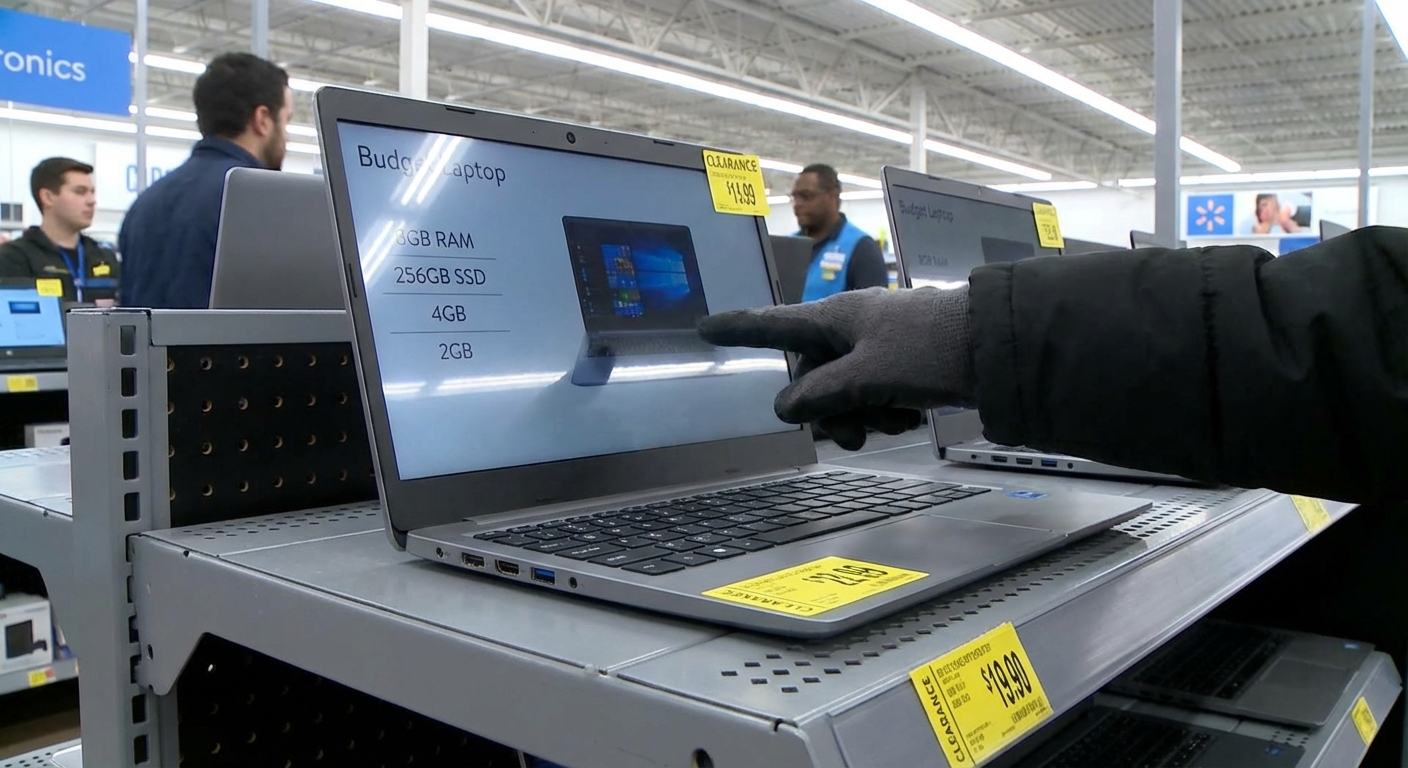
But if you know what you’re looking for, the value can be ridiculous.
How to Actually Find the Hidden Clearance Deals
The clearance sticker on the shelf is honestly just the tip of the iceberg. A lot of the real deals are buried in the system.
1. Don’t trust only what you see on the shelf
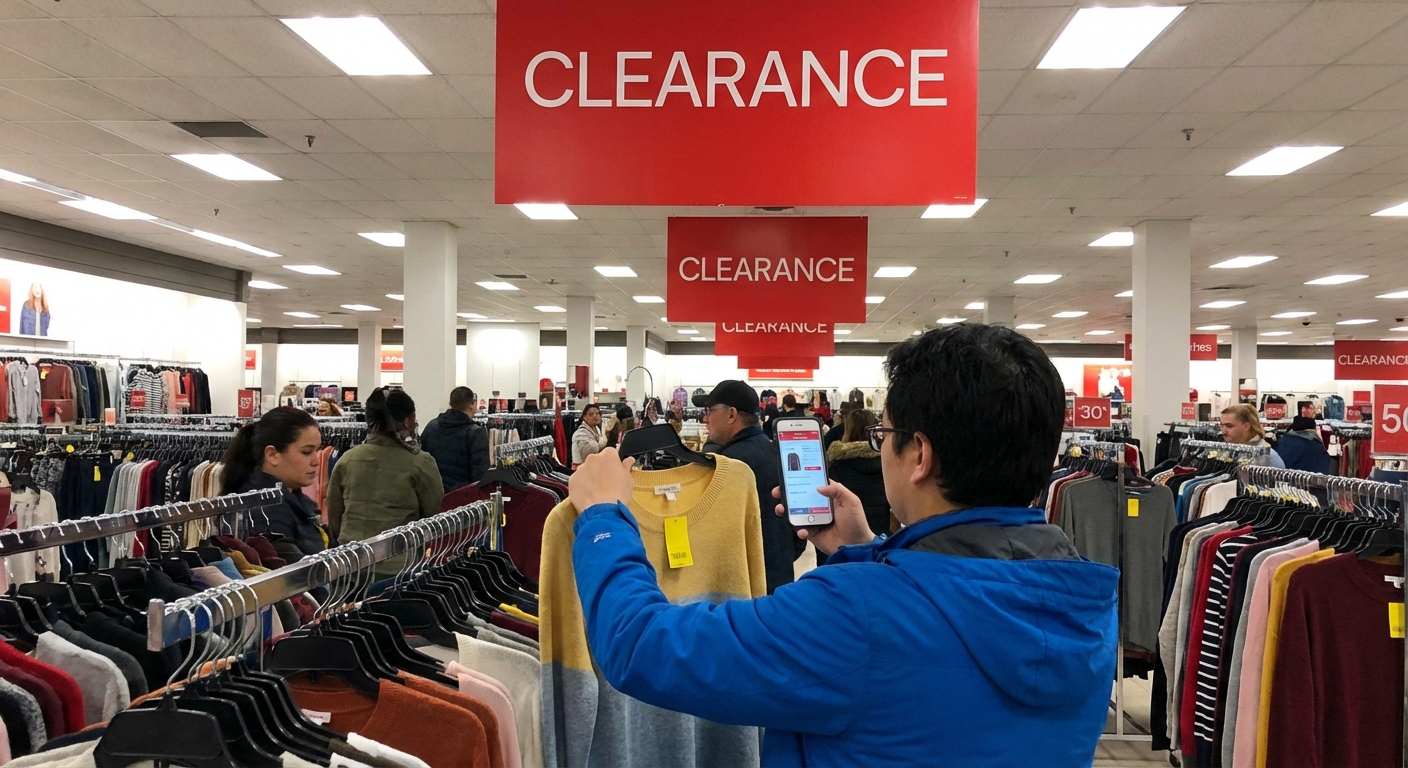
At my local store, the “electronics clearance” section had three dusty Chromebooks and an ancient HP. When I scanned them in the Walmart app, two of them were marked lower than the sticker price. Behind the counter, there were another four laptops that didn’t even have clearance tags yet.
What I do now every time:- Walk the regular laptop aisle
- Look for yellow clearance tags and random single units
- Scan everything with the Walmart app (price can be lower than the shelf)
- Politely ask an associate if they have any clearance or open-box laptops in the back
More than once, an employee has pulled out a box and said, “We were supposed to mark this down last week…”
2. Use the Walmart app like a cheat code
I recently discovered that the app sometimes shows store-specific hidden clearance prices. I’ve scanned a laptop that said $299 on the shelf and $199 in the app at that exact store.
What I do:
- Open the Walmart app
- Switch to Pickup & delivery and set my local store
- Use the barcode scanner
If you really want to go deep, some people use the SKU or UPC number and check other nearby stores for even better markdowns. This works because Walmart pricing can vary store to store.
The 5 Specs You Must Check (or You’ll Regret It)
I’ve seen way too many people buy a clearance laptop because “it’s cheap” and then hate it six weeks later. In my experience, these are the non‑negotiables.
1. RAM: 4GB vs 8GB vs 16GB
For Windows laptops:
- 4GB RAM – Painful for anything beyond light browsing. I avoid it.
- 8GB RAM – Minimum I’d recommend for everyday use (web, Office, streaming, light multitasking).
- 16GB RAM – Ideal if you’re doing heavier work, lots of tabs, or light photo/video editing.
Chromebooks can get away with 4GB because ChromeOS is lighter, but even then, 8GB feels noticeably smoother when I tested multiple tabs and Android apps.
2. Storage: eMMC vs SSD
This is where a lot of Walmart clearance traps are hiding.
- eMMC (32–64GB) – Slower, usually soldered, often found in ultra‑cheap models. Fine for kids’ schoolwork or pure web use, but fills up fast.
- SSD (128GB, 256GB, 512GB) – Much faster boot times, more reliable, makes everything feel snappier.
When I tested an eMMC laptop against an SSD one with the same CPU, the SSD model booted about twice as fast and handled app switching way better.
If you see 32GB eMMC on a Windows laptop… just walk away unless it’s for extremely basic, single‑use tasks.
3. CPU: Name actually matters
Here’s the rough hierarchy I use when comparing Walmart clearance CPUs:
- Intel Core i5 / Ryzen 5 – Sweet spot for most people. Great for multitasking, students, office work.
- Intel Core i3 / Ryzen 3 – OK for light use, but don’t expect miracles under heavy multitasking.
- Intel Pentium, Celeron, Athlon Silver – Budget chips. Fine for basic web + documents.
- Intel N4020, N4120, etc. – Ultra low-powered chips. In my testing, these choke quickly with lots of tabs.
If you want your laptop to last more than 2–3 years, I try to aim for at least Core i3 / Ryzen 3 or better.
4. Display: 1366×768 vs 1920×1080 (Full HD)
The difference between a low-res 1366×768 panel and a 1920×1080 Full HD screen is massive once you notice it—especially if you’re reading or working a lot.
When I tested a 15.6" 768p panel next to a 1080p one, the cheaper screen looked washed out and fuzzy. If you’re staring at it for hours, your eyes will thank you for Full HD.
5. Build quality & keyboard
This is the one thing you can’t fix later with an upgrade. I always:
- Flex the keyboard deck a bit (does it creak like it’s about to snap?)
- Type a quick paragraph (are the keys mushy or precise?)
- Move the hinge up and down a few times (does it feel solid?)
I’ve had clearance laptops that felt like they’d explode if you looked at them wrong — I leave those behind.
Online vs In-Store: Which Has Better Clearance?
When I compared Walmart.com prices to in-store clearance, I found a weird pattern:
- Online: Often better for brand‑new, actively sold models with rollbacks, deals, and bundles.
- In‑store: Better for deep clearance on older or limited stock, especially when the store wants shelf space back.
Walmart’s official policy lets you return most electronics within 30 days with a receipt (there are exceptions, so I always double‑check the latest policy on their site).[¹] That return window is your safety net when rolling the dice on clearance.
What I do now:
- Compare online price vs store price on the same model using the app
- If the in‑store clearance is significantly lower and the specs check out, I grab it and test heavily in the first week
Pros and Cons of Walmart Clearance Laptops
After way too many trips and several test drives, here’s the honest breakdown.
Pros
- Huge savings – I’ve personally seen 30–60% off regular prices.
- Surprisingly decent mid‑range options – Especially last‑year’s HP, Lenovo, and Acer models.
- Good for kids, students, and backups – Great for a secondary or “I won’t cry if this breaks” laptop.
- Return policy still applies (usually) – As long as it’s within the electronics window and not marked final sale.
Cons
- Spec traps – Super cheap models often hide weak CPUs, 4GB RAM, and tiny eMMC drives.
- Limited selection – You’re at the mercy of what your local store has.
- Stock is inconsistent – Clearance today, gone tomorrow.
- Battery health unknown – Display units may have sat plugged in 24/7 for months.
I always test battery life hard in the first couple of days by streaming, browsing, and running updates off the charger. If it nose‑dives, I return it.
When a Walmart Clearance Laptop Isn’t the Right Move
Even as someone who loves a deal, I’ll admit: sometimes you should just walk away.
I skip Walmart clearance laptops when:
- I need a serious gaming machine (dedicated GPUs are rare in clearance stock, and thermals matter).
- I’m doing heavy video editing or 3D work – I’d rather build or buy a properly spec’d machine.
- I see 4GB RAM + 64GB eMMC + Windows – performance and storage will frustrate you fast.
In those cases, I usually compare prices across Best Buy, manufacturer outlets (Dell, Lenovo, HP), and even refurbished options from reputable sellers. Refurb with a warranty often beats a weak new clearance laptop.
My Personal “Quick Scan” Checklist in the Aisle
Here’s the exact mental checklist I use now when I spot a promising yellow sticker:
- Scan it in the Walmart app – Is the real price even lower?
- Check RAM & storage first – Minimum 8GB RAM + SSD (128GB or more) for Windows.
- Look at the CPU line – Aim for at least a Core i3 / Ryzen 3 for everyday use.
- Check screen resolution – Prefer Full HD (1920×1080).
- Inspect physical condition – Ports, hinge, keyboard, any cracks or weird noises.
- Ask about return policy – Especially for open-box or display units.
If it passes all of that and the price is truly a steal compared to similar models online, I buy it, bring it home, and stress-test it immediately:
- Run Windows updates or ChromeOS updates
- Install basic software
- Open a ton of browser tabs
- Test Wi‑Fi, webcam, speakers, and all ports
If anything feels off or laggy at this stage, I don’t try to “live with it.” I return it.
Final Thoughts from Someone Who’s Returned Too Many Laptops
Walmart clearance laptops are a little like thrift‑store clothing: 80% is “meh,” 15% is “okay for the price,” and 5% is “why did they let this go so cheap?”
The trick, in my experience, is:
- Ignoring the “deals” that are only cheap on paper
- Being ruthless about specs and condition
- Using the app and the return policy to your advantage
If you’re willing to do 15–20 minutes of scanning, checking, and asking questions, you can absolutely walk out with a laptop that feels like a $400 machine for half the price.
And yes, I still occasionally run into Walmart “just for groceries” and accidentally drift through electronics – strictly for research, of course.
Sources
- Walmart – Returns, Refunds & Replacements Policy – Official Walmart return information for electronics and other items.
- Best Buy – How Much RAM Do I Need? – Retailer breakdown of RAM needs for different types of users.
- PCMag – SSD vs. HDD: What’s the Difference? – Explanation of why SSD storage feels faster in real-world use.
- HP – Understanding Laptop Processors – Overview of different CPU tiers and what they’re good for.
- U.S. Department of Education – Tips for Shopping for a Computer – General guidance for students and families buying budget computers.